> For the complete documentation index, see [llms.txt](https://docs.wprevivepress.com/llms.txt). Markdown versions of documentation pages are available by appending `.md` to page URLs; this page is available as [Markdown](https://docs.wprevivepress.com/how-to-activate-your-revivepress-license.md).
# How to Activate Your RevivePress License?
Do you need to activate your RevivePress license? Activating your license key will provide you with access to automatic updates and support, completing the installation process.
In this tutorial, we’ll show you how to activate your RevivePress license on your WordPress site.
* [Verifying Your RevivePress License](https://wprevivepress.com/docs/how-to-activate-your-revivepress-license/#verify)
* [Frequently Asked Questions](https://wprevivepress.com/docs/how-to-activate-your-revivepress-license/#faq)
Before you get started, be sure to install the RevivePress Premium plugin on your site. Without License activation, you can't use the plugin.
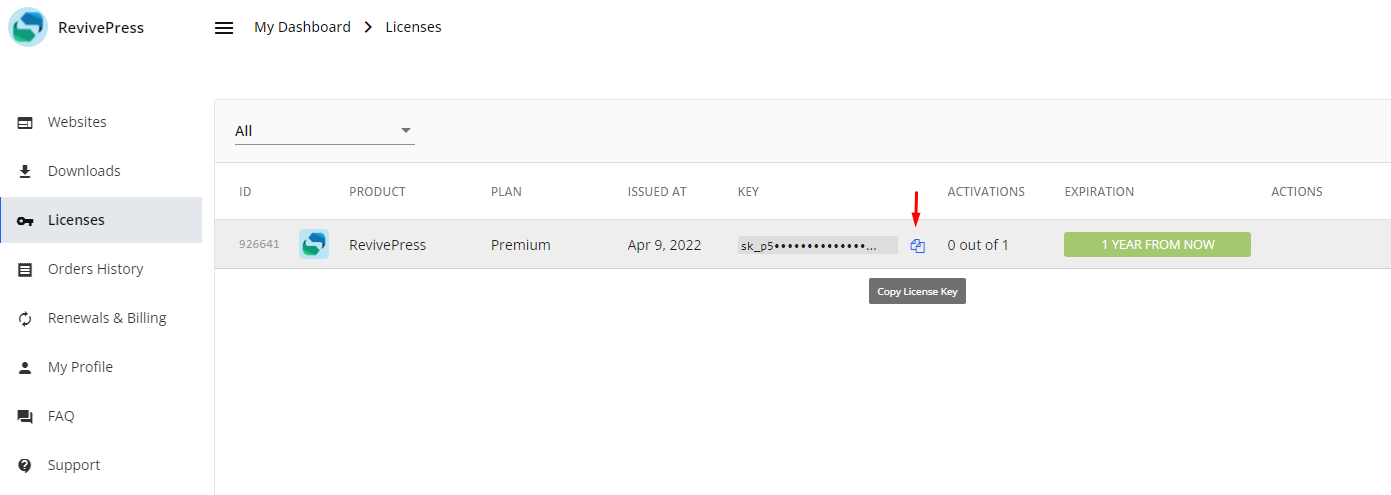
To access your license key, you must open your [RevivePress account](https://wprevivepress.com/account/). Once you log in, please go to Licenses tab and you will find your License Key on that page. Please copy the license key from there. It will be required in the next step.
 #### Verifying Your RevivePress License
Once you’ve installed and activated the plugin, it will ask for the License key to activate the plugin. You’ll need to enter your license key in that page.
#### Verifying Your RevivePress License
Once you’ve installed and activated the plugin, it will ask for the License key to activate the plugin. You’ll need to enter your license key in that page.
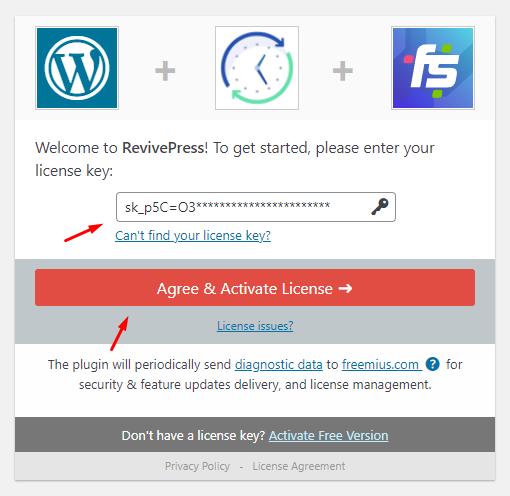 Add previously copied Key to the **License Key** field in your RevivePress plugin settings and click on the **Agree & Activate License** button to save and update your settings. After successful verification, the plugin will be fully activated and available immediately to use. Also, you’ll then see a notification letting you know that your site is receiving automatic updates.
#### Frequently Asked Questions
Below are some of the most common questions we receive from users trying to verify their licenses in RevivePress.
**My license verification failed. What should I do?**
License verification failure is often due to PHP cURL issues. To check if there is such a problem on your site, you can use the WordPress Site Health tool.
First, go to **Tools » Site Health » Status** in your WordPress admin area.
Make sure you’re in the **Status** tab of the Site Health tool. If there is a serious PHP-related problem on your site, you’ll see a section labeled **Critical Issues**. Under it, look for any notices related to PHP cURL. Also, you can check [this](https://freemius.com/help/documentation/wordpress-sdk/license-activation-issues/) out.
To resolve a PHP cURL issue, you’ll need to contact your hosting provider’s support team for help.
That’s it! Now you know how to verify your license so your site can use and receive automatic updates for RevivePress.
Add previously copied Key to the **License Key** field in your RevivePress plugin settings and click on the **Agree & Activate License** button to save and update your settings. After successful verification, the plugin will be fully activated and available immediately to use. Also, you’ll then see a notification letting you know that your site is receiving automatic updates.
#### Frequently Asked Questions
Below are some of the most common questions we receive from users trying to verify their licenses in RevivePress.
**My license verification failed. What should I do?**
License verification failure is often due to PHP cURL issues. To check if there is such a problem on your site, you can use the WordPress Site Health tool.
First, go to **Tools » Site Health » Status** in your WordPress admin area.
Make sure you’re in the **Status** tab of the Site Health tool. If there is a serious PHP-related problem on your site, you’ll see a section labeled **Critical Issues**. Under it, look for any notices related to PHP cURL. Also, you can check [this](https://freemius.com/help/documentation/wordpress-sdk/license-activation-issues/) out.
To resolve a PHP cURL issue, you’ll need to contact your hosting provider’s support team for help.
That’s it! Now you know how to verify your license so your site can use and receive automatic updates for RevivePress.